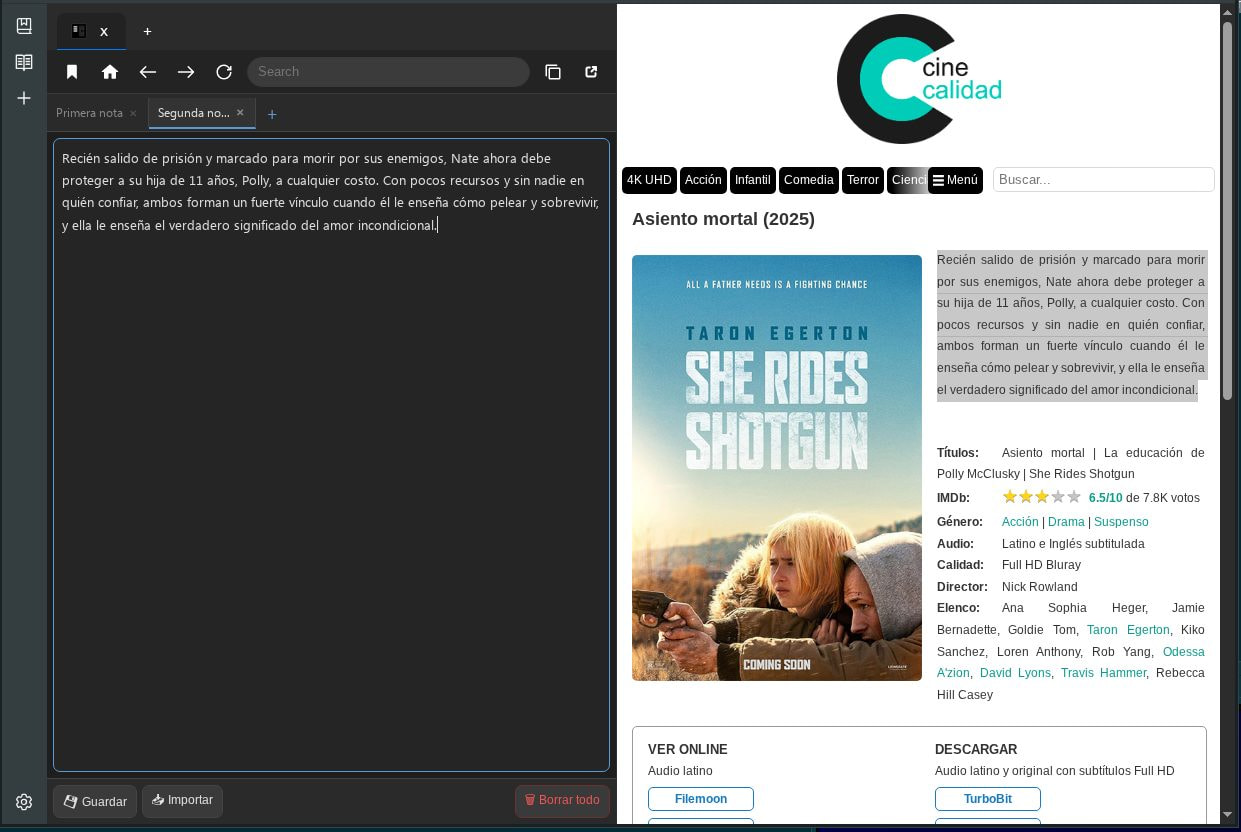
Other things I’ve been working on:
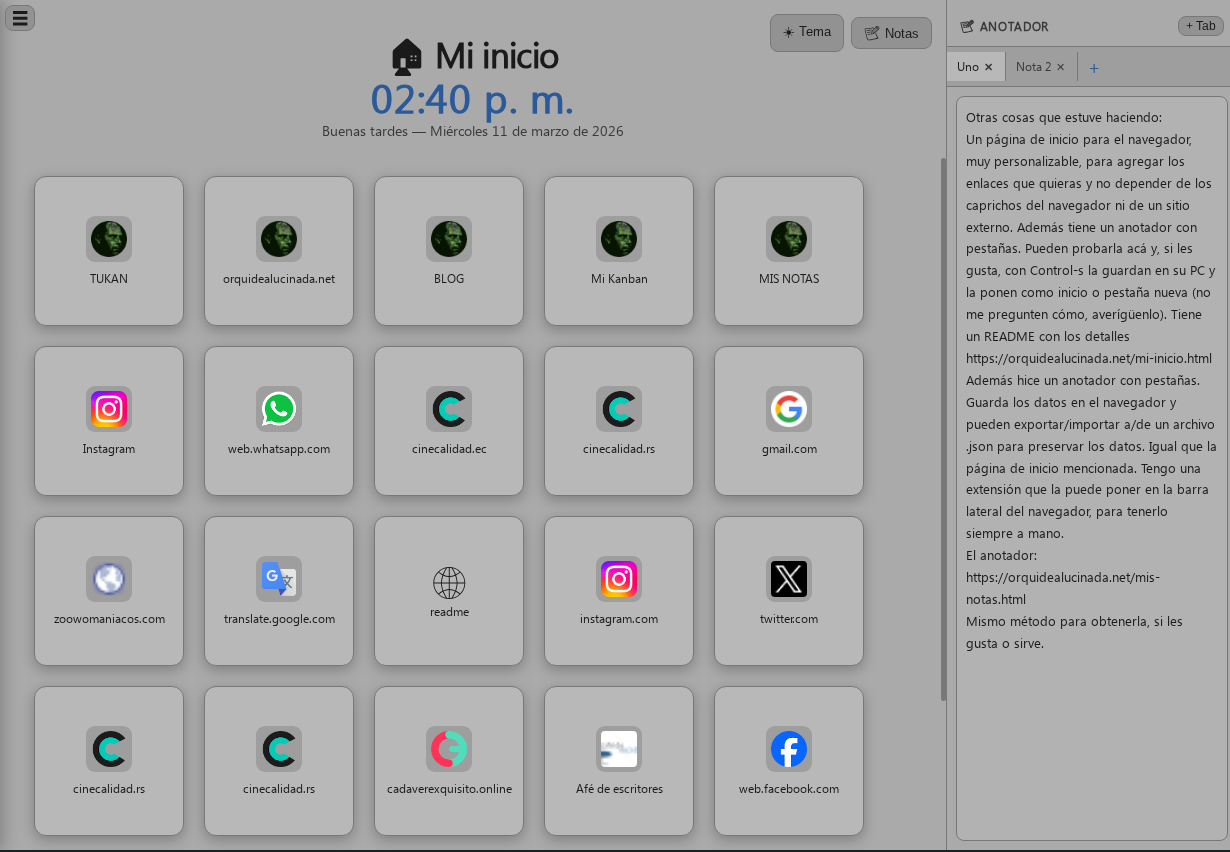
A highly customizable browser homepage where you can add any links you want without depending on the browser’s quirks or an external site. It also has a tabbed annotator. You can try it here, and if you like it, you can save it to your PC with Control-S and set it as your homepage or a new tab (don’t ask me how, figure it out). There’s a README file with the details:
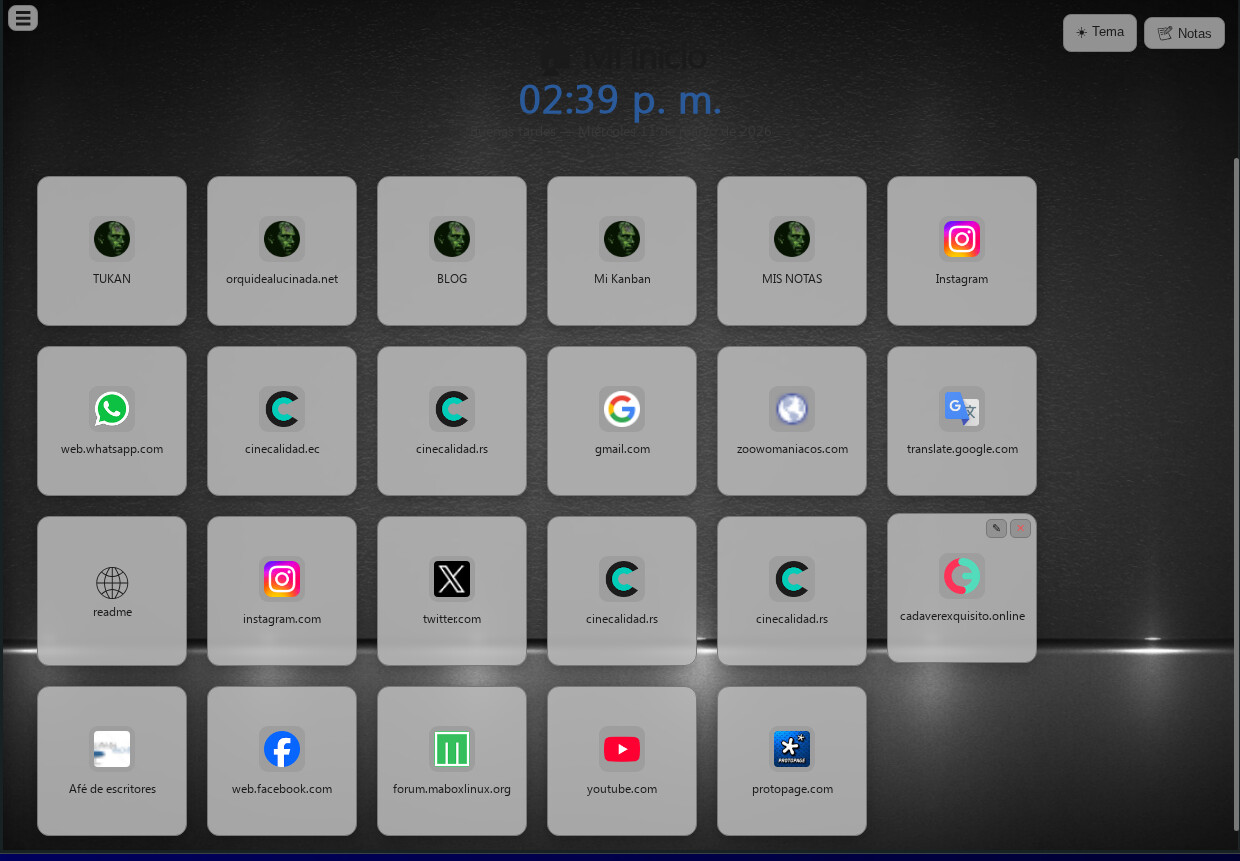
 Mi Inicio
A customizable browser start page. Everything is saved automatically in localStorage.
 Adding links
- Drag & drop: drag a URL from the browser address bar and drop it onto the grid.
 Add link button: enter the URL and name. Choose whether it goes to the grid or the sidebar.
 Inline editing
- Card name: Button to edit it.
- Sidebar link: Button to edit it.
- Page title: double-click the title in the header. Confirm with Enter or cancel with Escape.
- Note tab name: double-click the tab.
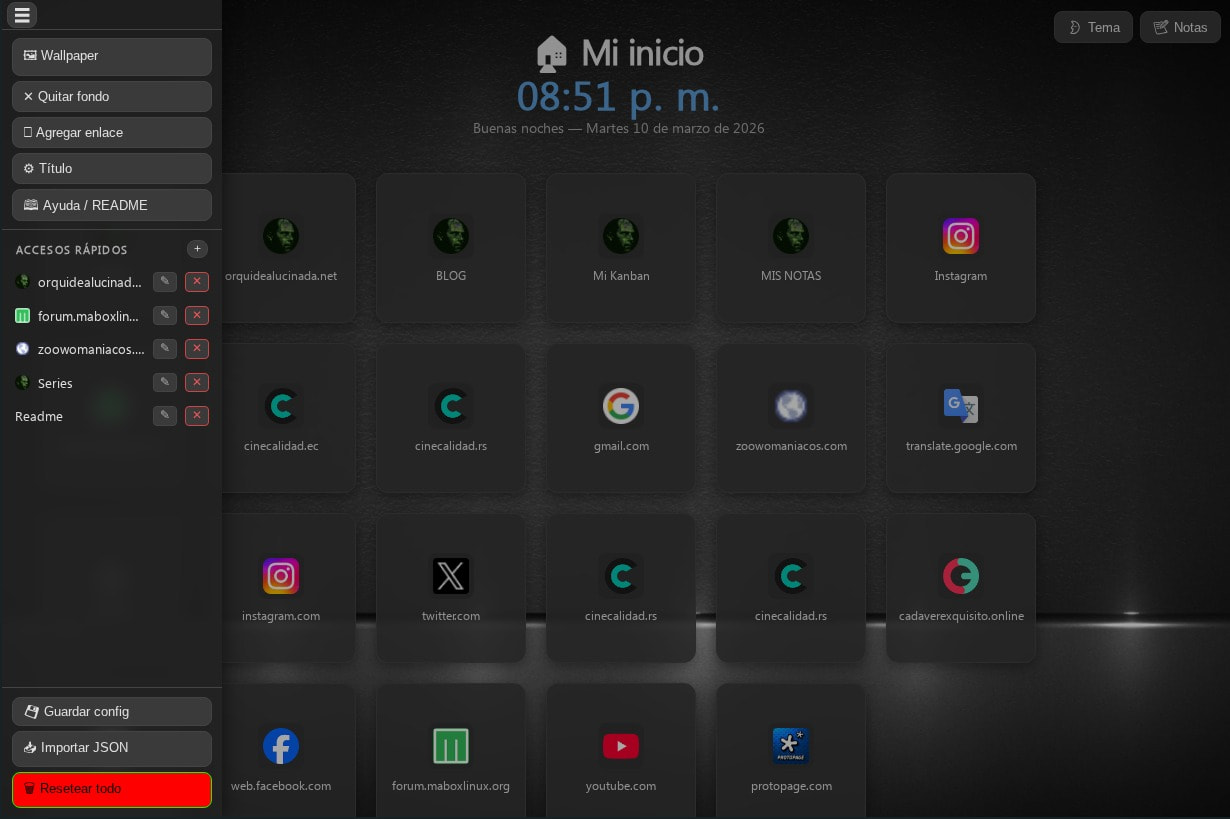
 Left sidebar
- Show/hide with the ☰ button. When hidden, a ☰ button appears on the left edge to reopen it.
- Contains quick-access links (as buttons), main actions, and save options.
 Notepad
- Right panel, hideable with the Notes button.
- Plain text
- Supports multiple tabs. Click to switch, double-click to rename, ✕ to close.
- + Tab button to add new tabs.
 Theme
Theme
- Theme button (top right): toggles between dark mode (#2a2a2a) and light mode (soft grays and blues).
 Wallpaper
- Wallpaper button in the sidebar: pick an image from your computer.
- ✕ Remove background button to clear it.
- The wallpaper is saved in
localStoragealong with the rest of the config.
 Saving configuration
- Save config: downloads a
config.jsonfile with all settings. - Import JSON: restores a previously saved configuration.
 Resetear: Clear all settings.
I also created a tabbed notepad. It saves data in the browser, and you can export/import to/from a .json file to preserve the data. Just like the homepage mentioned above. I have an extension in my browser that I can add to my browser sidebar for easy access.
By selecting text from the webpage, you can drag it to the annotator, and it will paste automatically—very practical if you have it in the sidebar, although you can also do it if the annotator is in another tab.
The notepad:
Same method to obtain it, if you like it or find it useful.