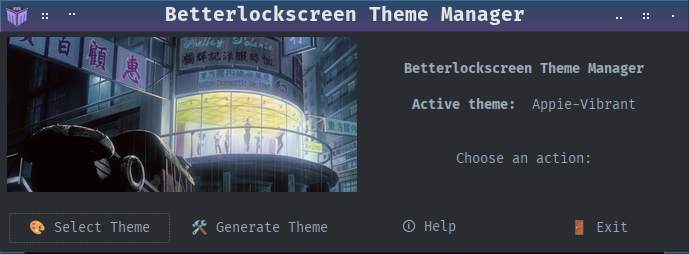
Introducing Betterlockscreen Theming Toolkit – where your lock screen gets a glow‑up!
Ready to make the mundane lock screen awesome? Let’s dive in. 
Level:: Easy_Stupid
Urgent:: Zero
Fun:: *******
███╗   ███╗ █████╗ ██████╗  ██████╗ ██╗  ██╗
████╗ ████║██╔══██╗██╔══██╗██╔═══██╗╚██╗██╔╝
██╔████╔██║███████║██████╔╝██║   ██║ ╚███╔╝
██║╚██╔╝██║██╔══██║██╔══██╗██║   ██║ ██╔██╗
██║ ╚═╝ ██║██║  ██║██████╔╝╚██████╔╝██╔╝ ██╗
╚═╝     ╚═╝╚═╝  ╚═╝╚═════╝  ╚═════╝ ╚═╝  ╚═╝  Community.
Betterlockscreen Theme Toolkit for Mabox Linux
(pl, es, nl , en)
This toolkit offers intuitive scripts for creating, selecting,
and applying custom Betterlockscreen themes—including Cyberpunk,
Vibrant, and Pastel styles—on Mabox Linux.
It allows easy customization of login, verification, and warning messages, and seamlessly integrates with the Mabox desktop wallpaper system.
Note:
- Need
betterlockscreeninstalled and setup for Mabox.
Quick Start…
Launch ./betterlock-theming.AppImage
- Run directly via AppImage – no installation needed
Get started creating your first betterlockscreen theme:
chmod +x betterlock-theming.AppImage
./betterlock-theming.AppImage
Optional: To peek inside the AppImage:
./betterlock-theming.AppImage --appimage-extract
cd squashfs-root
ls
You’ll see all scripts, icons, and desktop files included.
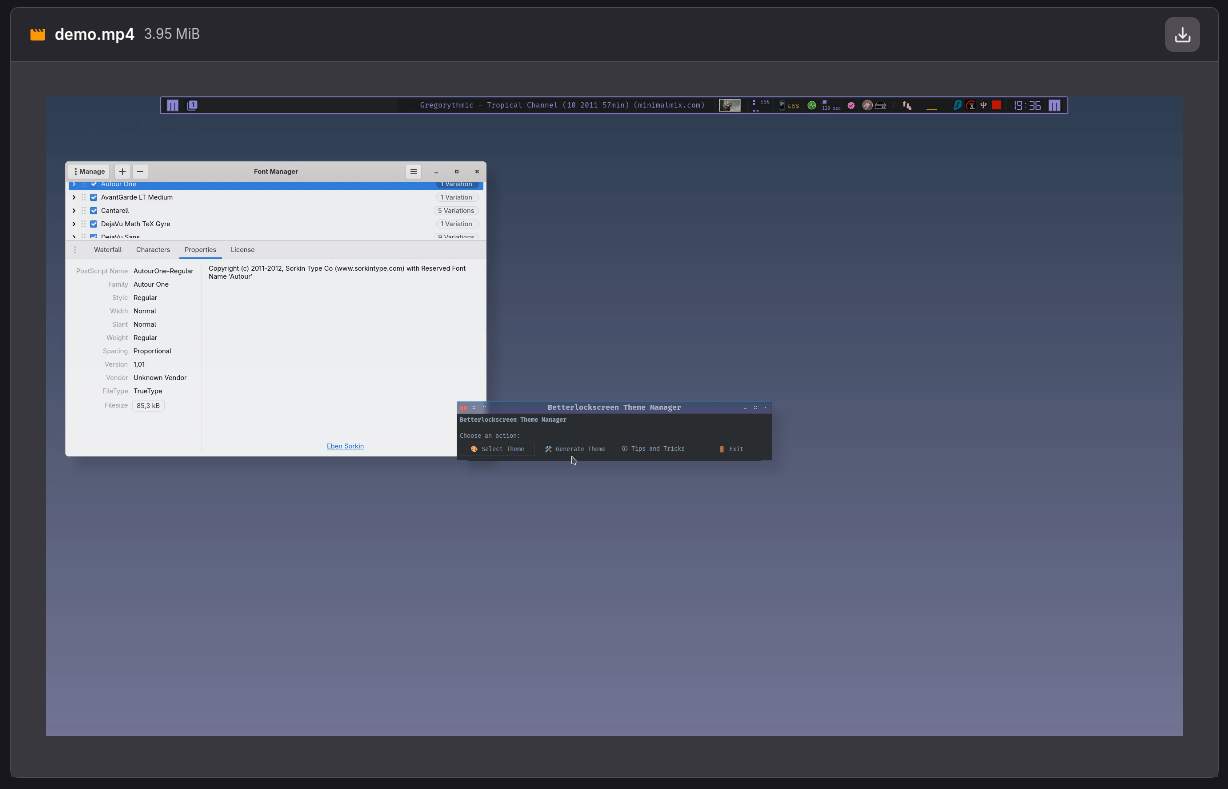
BETTERLOCKSCREEN THEME GENERATION VIDEO WORKFLOW
Manual Instalation Steps
Bash scripts involved
-
betterlock-theme-generator – interactive color theme generator
-
betterlock-themes – select and activate existing themes
-
betterlock-menu – main menu
Features
1. Theme Generator (betterlock-theme-generator)
- Choose a color style: Cyberpunk, Vibrant, or Pastel
- Randomly generate colors, with option to regenerate until satisfied
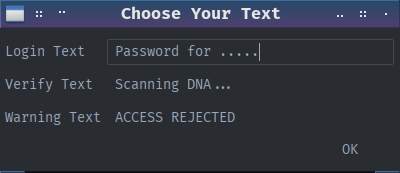
- Edit login, verification, and warning text
- Adjust login-box background or make it fully transparent
- Choose font family
- Preview all color variables
- Save themes directly to:
~/.config/betterlockscreen/themes/
Saved themes can then be selected using betterlock-themes.
Login window demo’s.
(fade effect is from picom)
https://gitlab.com/muzlabz/betterlockscreen-theme-creator/-/raw/main/demo/passwin-02.gif
https://gitlab.com/muzlabz/betterlockscreen-theme-creator/-/raw/main/demo/passwin-03.gif
https://gitlab.com/muzlabz/betterlockscreen-theme-creator/-/raw/main/demo/passwin-01.gif
2. Theme Picker (betterlock-themes)
- Lists all saved themes in
~/.config/betterlockscreen/themes
themes dir will be created - Activate a chosen theme
- Optionally regenerates login box background, shadows, and transparency
- Integrates with Mabox wallpaper handling default
- Or custom background image
3. Main Menu (betterlock-menu)
- Provides the main menu. a simple GUI interface (yad)
- Common actions:

Save theme Quick or Slow …
When applying or previewing themes:
-
Quick update (instant preview):
- Updates colors, fonts, and text immediately
- Great for seeing changes without delay
- Does NOT update login box background/transparency or shadows
-
Slow update (full regeneration):
- Updates colors, fonts, and text
- Rengenerate mabox wallpaper as background (default)
- Regenerates login box shadows, and transparency
Mabox Linux Integration
-
Changing the desktop wallpaper updates the source image for
betterlockscreen background regeneration (Default) -
Or use
Custom Background Path. Leave empty to use current wallpaper.
Installation
- Clone the repository:
git clone https://gitlab.com/muzlabz/betterlockscreen-theme-creator
cd betterlockscreen-theme-creator
- Install the scripts:
chmod +x bin/betterlock-*
cp bin/betterlock-* ~/bin
Usage
Main menu
betterlock-menu
Note
- Themes are saved as
.themefiles in:
~/.config/betterlockscreen/themes/
.Desktop template
[Desktop Entry]
Name=Betterlock Theme
Comment=Choose betterlockscreen theme
Exec=/path/to/betterlock-menu
Icon=system-lock-screen
Terminal=false
Type=Application
Categories=Settings;Utility;
Windows overview
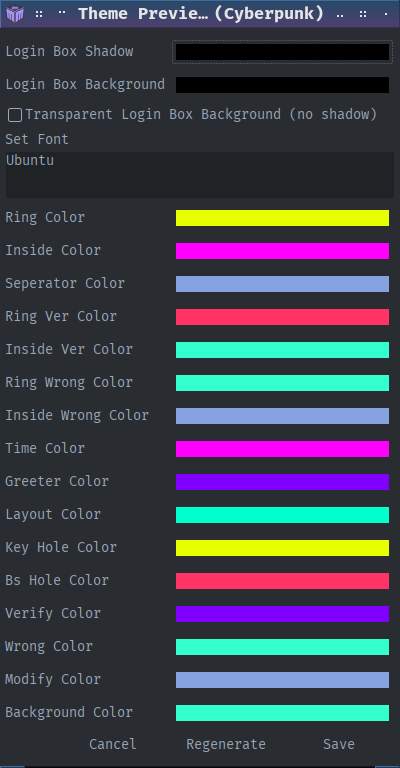
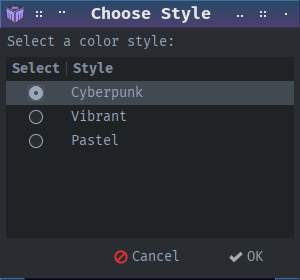
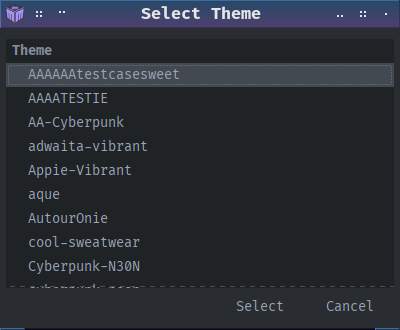
Extra info yad title image Mabox way
Mabox has a LOGO SVG Conky Mabox_logo_SVG_mbcolor.conkyrc where one can choose between 3 variation with coloring options.
The svg’s are created automatic when using conky svg coloring edit menu (preview).
Path $HOME/.icons/mabox-logo-* is used to store the svg’s.
In the scripts at the top, look for...
ICON="$HOME/.icons/mabox-logo-3d.svg"

# all options
mabox-logo-3d.svg
mabox-logo-circle.svg
mabox-logo-square.svg
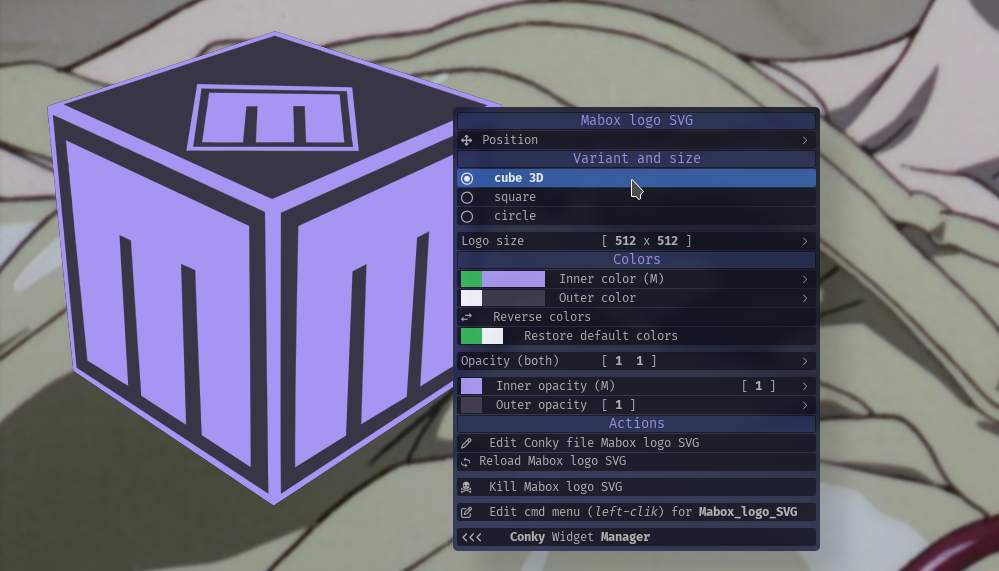
Mabox lock screen settings menu (jg)
Hotkey W-A-l show Mabox betterlockscreen settings for blur, etc…
DOWNLOAD
Have fun